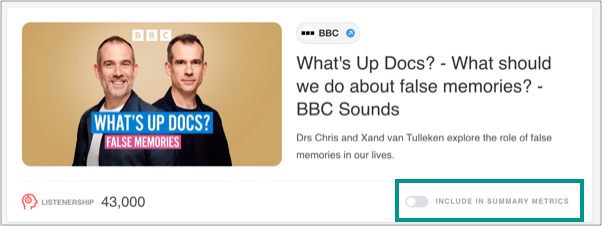

Audio media is now a staple of modern PR, from podcast interviews to radio clips. But it can be challenging to share highlights and metrics with stakleholders.
The Audio widget within Releasd makes that easy.
Simply add audio clips, and they can be viewed and played within the report where possible - or on the original site. Listenership figures can be added and automatically totalled up too.
Let's see how it works.
1. Adding an Audio widget to the report
Drag and drop the Audio widget from the Toolbar onto the report:
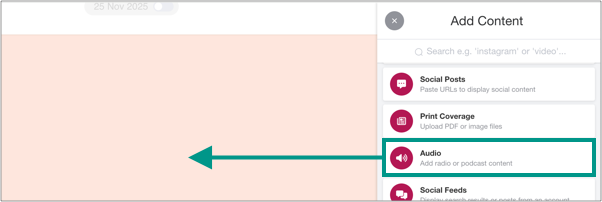
Then click the blue button:
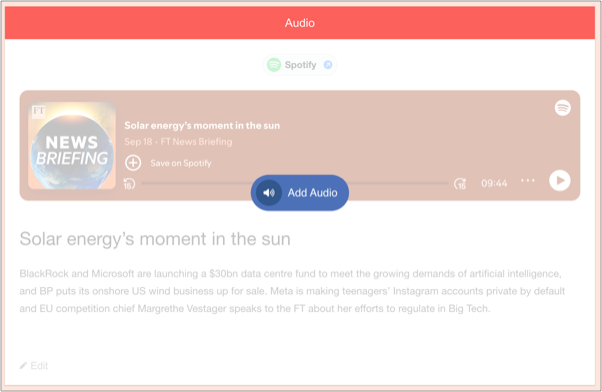
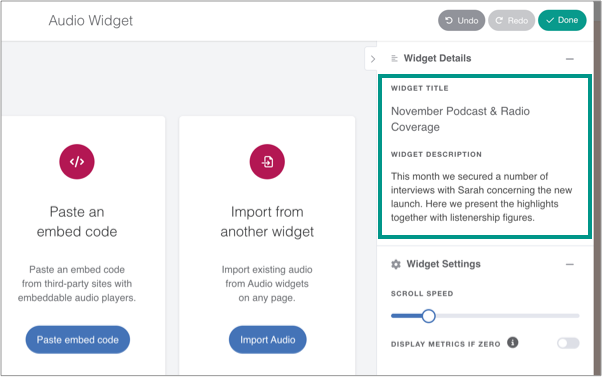
1.1. Add a widget Title and (optional) Description
Adding a widget title helps for granular reporting later.
2. Adding audio content to the widget
There are four methods for adding radio or podcast clips.
2.1. Upload files from your computer (mp3, mp4, wav)
Use this option if you have saved one or more audio files in a folder.
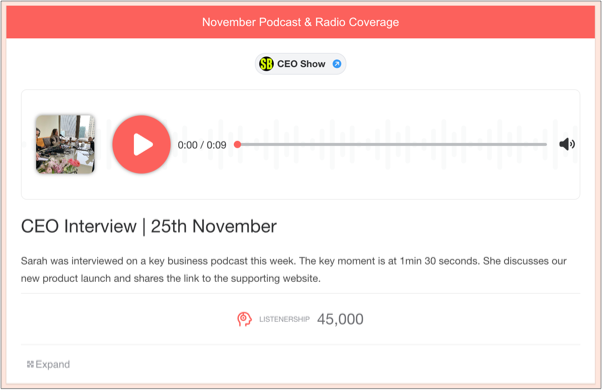
Readers will be able to play the content within the report and see the Listenership if added:
Viewers can play the content within the report.
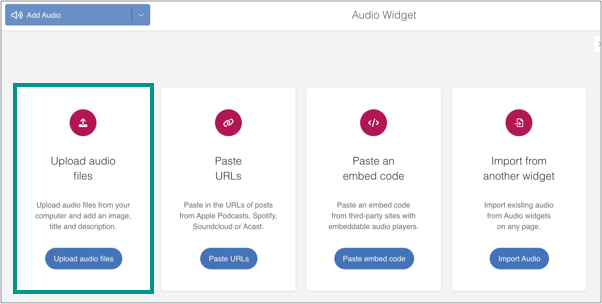
First, select the relevant option in the widget:
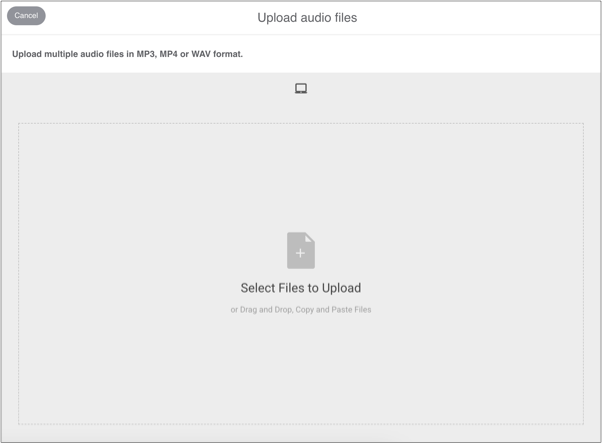
Upload one or more files:
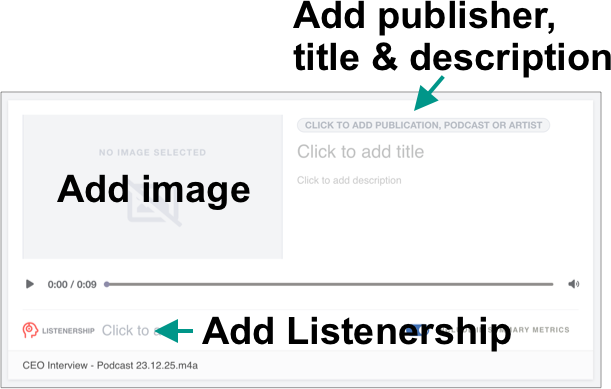
Optionally add the following content - simply click on the relevant area:
Publisher name & link (for icon)
Title & description
Image
Add Listenership figures to allow for automatic totalling in the Summary Metrics widget
Here is the content after being added in the widget:
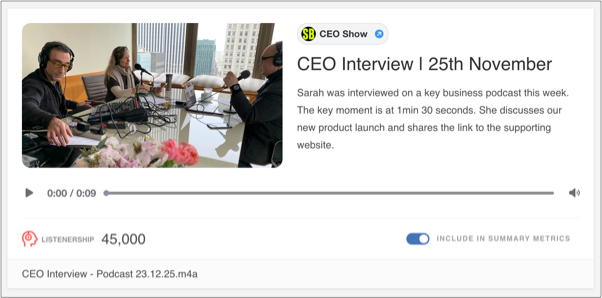
2.2. Add URLs for content hosted online
Use this option for content hosted on popular platforms like Apple Podcasts, Spotify or Soundcloud - plus clips that are hosted online and cannot be downloaded or embedded.
Viewers can play the content within the report if available, or click to listen on the source website if not.
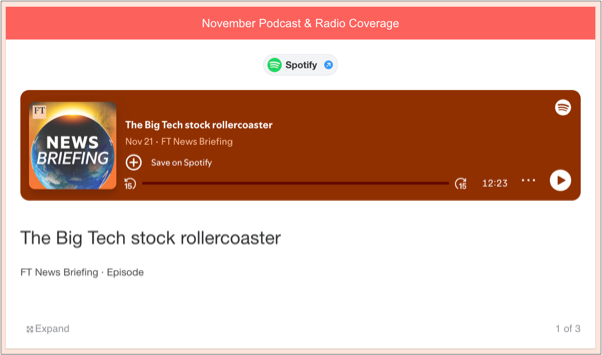
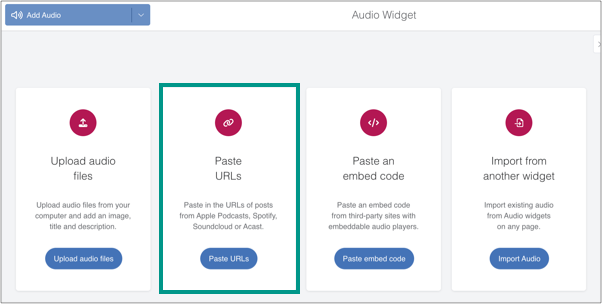
First, select the option to paste URLs:
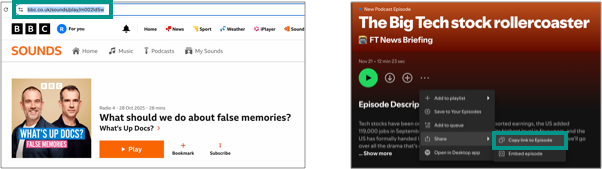
Copy the URL(s) of the clip or webpage:
Paste into the Audio widget:
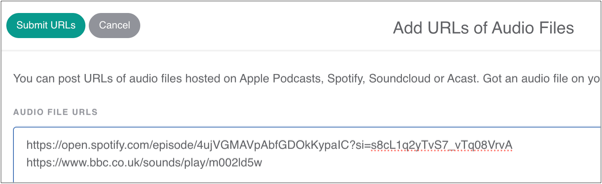
Add Listenership figures to allow for automatic totalling in the Summary Metrics widget.

Note: the content can be edited - simply click the fields and update as needed.
2.3. Use an embed code
Content can be embedded if an embed code is available on the source platform.
Simply copy the code and paste into the Audio widget:
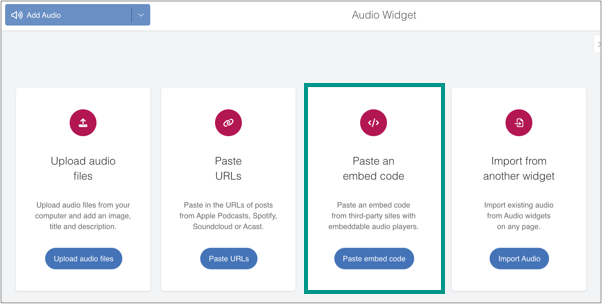
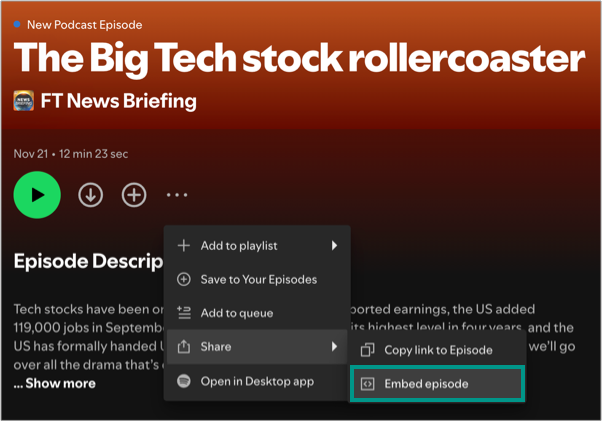
Optionally add the following information - simply click on the relevant area:
Publisher name & link (for icon)
Title & description
Add Listenership figures to allow for automatic totalling in the Summary Metrics widget
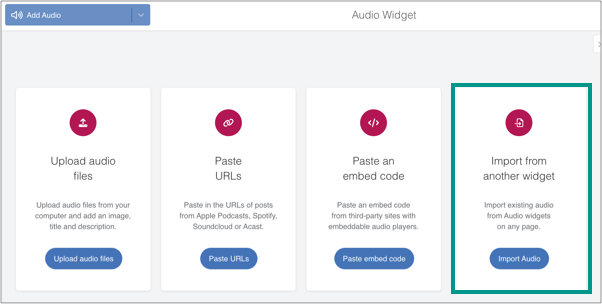
2.4. Import from an existing widget
If clips exist in another widget - either in the current report or a different one - select this option and choose which content to import.
2. Totalling up metrics (Summary Metrics widget)
To total up the number of audio clips and Listenership, add a Summary Metrics widget to the report.
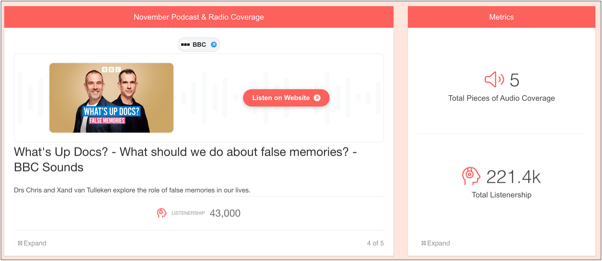
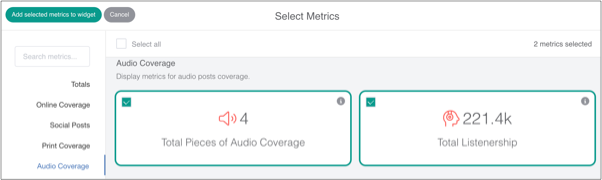
Drag on a Summary Metrics widget, then scroll to the 'Audio Coverage' section.
Select the metric(s) you would like to add, and save the widget:
Notes:
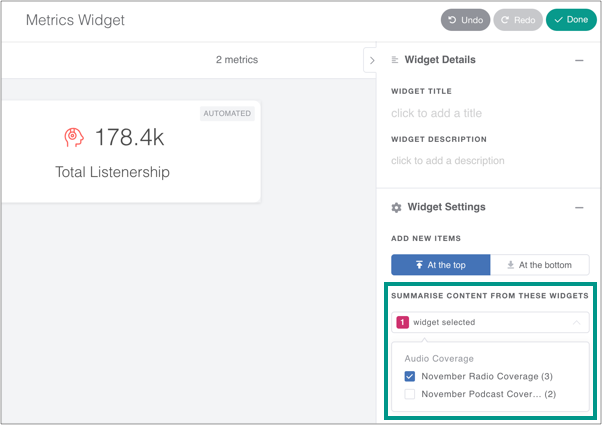
To get metrics for a specific widget within a report, use the filter in the Summary Metrics widget:
To exclude a specific audio clip from the above total figures, open the Audio widget, find the clip and switch the toggle off: